![CAD Forum - tips, tricks, discussion and utilities for AutoCAD, Inventor, Revit and other Autodesk products [www.cadforum.cz]](../common/arkance_186.png "CAD Forum - ARKANCE Community - tips, tricks, discussion and utilities for AutoCAD, Inventor, Revit and other Autodesk products [www.cadforum.cz]")

 What is the ARKANCE Community?
 CAD tip # 8484:
Question
In older AutoCAD versions (2009 and older), right-click on the selected material in the Materials palette and use the "Apply material" function. On the object then select the specific 3D face with the Ctrl key.
In newer versions of AutoCAD (2010 and higher) with the new unified material editor, first choose the requested faces on the 3D object (as sub-objects, i.e. with the Ctrl key) and in the material palette click on the image of the requested rendering material.
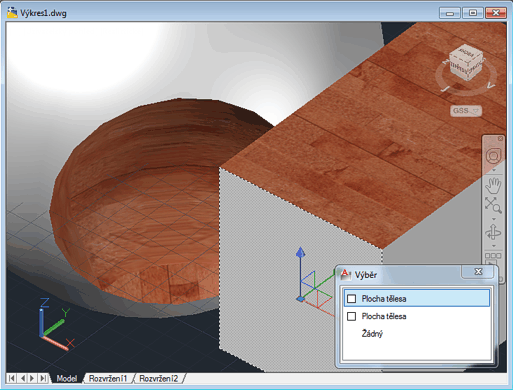
You can also use the SOLIDEDIT command with the option Face and Material -- identify the face by its edges and enter the name of the requested material.
Another option is the command MATERIALASSIGN; on the "Select objects:" prompt enter Subobject and select the requested face or faces.

 *CAD
*CAD