Measuring a line as a diameter?
Printed From: CAD Forum
Category: EN
Forum Name: AutoCAD
Forum Description: Discussion about AutoCAD and AutoCAD LT, viewers, DWG and DXF formats, Design Review, AutoCAD web, Drive, add-ons
URL: https://www.cadforum.cz/forum_en/forum_posts.asp?TID=11005
Printed Date: 19.Oct.2026 at 14:25
Topic: Measuring a line as a diameter?
Posted By: vegtribe
Subject: Measuring a line as a diameter?
Date Posted: 21.Feb.2015 at 05:38
|
I want to show the diameter of the end of a cylinder looked at from the side so it's drawn as a Line but the Diameter tool only measures arcs or circles while Linear Dimension doesn't insert the diameter symbol. Any ways to work this? Thanks.
|
Replies:
Posted By: John Connor
Date Posted: 21.Feb.2015 at 12:20
|
Just override the dimension text. You do know the option exists right? ------------- "Humans have a strength that cannot be measured. This is John Connor. If you are reading this, you are the resistance." <<AutoCAD 2015>> |
Posted By: vegtribe
Date Posted: 21.Feb.2015 at 12:39
| Nope, I'm a student of CAD so I didn't know it existed. How does one go about overriding the dimension text? |
Posted By: John Connor
Date Posted: 21.Feb.2015 at 14:56
|
Look at the command line (see below). There is a Text option during the dimensioning procedure. Your Help file should have an explanation of how it works as well. Specify dimension line location or [Mtext/Text/Angle/Horizontal/Vertical/Rotated]: T Enter dimension text <4.4150>: 4.4%%C Result: 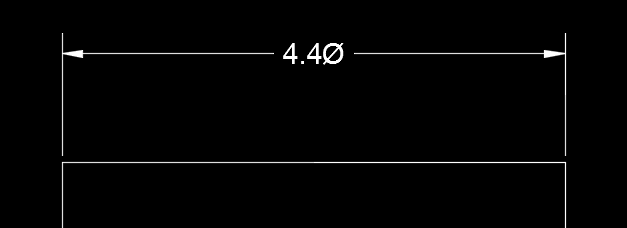 ------------- "Humans have a strength that cannot be measured. This is John Connor. If you are reading this, you are the resistance." <<AutoCAD 2015>> |
Posted By: Robert_D
Date Posted: 21.Feb.2015 at 23:55
|
Another alternative (there are always numerous alternatives in ACad) is to dbl click on the dim text. In text editor select â€symbol’ you can change the text, add diameter symbol, plus/minus symbol, degrees, etc. Note: to default back to base dimension, enter <>. |
Posted By: vegtribe
Date Posted: 22.Feb.2015 at 06:14
| Thanks for both solutions! Good to know them. |
Posted By: Kent Cooper
Date Posted: 23.Feb.2015 at 14:54
Better than that, don't give it the [in this case] 4.4 part, but use the measured-value place-holder <> mentioned by Robert_D together with the diameter [or other] symbol for the override text content:
<>%%C
That will mean that if you Stretch the drawn elements and Dimension, the numerical part will update correctly [which it won't do if you type in the 4.4], and the diameter symbol will still be there. |
 John Connor wrote:
Posted By: John Connor
Date Posted: 23.Feb.2015 at 15:39
|
If this is going to be a common occurrence then do not follow my advice. ------------- "Humans have a strength that cannot be measured. This is John Connor. If you are reading this, you are the resistance." <<AutoCAD 2015>> |
Posted By: Kent Cooper
Date Posted: 23.Feb.2015 at 20:37
| And of course, you can always define for yourself a for-the-purpose Dimension Style that includes the diameter symbol, whether as a suffix or a prefix -- see http://forums.autodesk.com/t5/drafting-techniques/position-of-the-diameter-symbol/td-p/1256109" rel="nofollow - this discussion . |
Posted By: vegtribe
Date Posted: 02.Mar.2015 at 13:27
Perfect! That's exactly the kind of functionality I was expecting to find, just didn't know how to implemet it, thanks! |