AutoCAD error
Printed From: CAD Forum
Category: EN
Forum Name: AutoCAD
Forum Description: Discussion about AutoCAD and AutoCAD LT, viewers, DWG and DXF formats, Design Review, AutoCAD web, Drive, add-ons
URL: https://www.cadforum.cz/forum_en/forum_posts.asp?TID=11426
Printed Date: 30.Oct.2026 at 10:26
Topic: AutoCAD error
Posted By: licona.julio
Subject: AutoCAD error
Date Posted: 19.Oct.2015 at 11:46
|
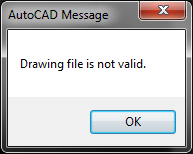
When trying to open a drawing file in
AutoCAD, the following message appears: Drawing file is not valid.
Anyone
else having this issue? |
Replies:
Posted By: John Connor
Date Posted: 19.Oct.2015 at 12:19
|
It looks like you might be trying to open a drawing saved to a different .dwg version than what you are running. For example, the drawing was created and saved in AutoCAD 2015 file format. Further information regarding this error message can be found here... http://knowledge.autodesk.com/support/autocad/troubleshooting/caas/sfdcarticles/sfdcarticles/Drawing-file-is-not-valid-error-message.html If it is a matter of a corrupt drawing you should read this article... http://knowledge.autodesk.com/support/autocad/troubleshooting/caas/sfdcarticles/sfdcarticles/AutoCAD-File-Corruption.html ------------- "Humans have a strength that cannot be measured. This is John Connor. If you are reading this, you are the resistance." <<AutoCAD 2015>> |
Posted By: Kent Cooper
Date Posted: 19.Oct.2015 at 20:00
| I get that when trying to open a drawing in a newer version [not just a different version] than what I have. If that's the issue, Download AutoDesk's free DWG TrueView program, which can convert .DWG files to earlier formats -- download the drawing rather than trying to open it directly, convert it with DWG TrueView, and then you can open it. |
Posted By: stanleybuckner17
Date Posted: 20.Oct.2015 at 23:31
|
Start
by verifying that the drawing file you are trying to open was not created in a
newer version of AutoCAD, with a newer file format than the version you are
currently using. For example, a drawing created in AutoCAD 2015 will not
open in AutoCAD 2012. Refer to http://knowledge.autodesk.com/support/autocad/troubleshooting/caas/sfdcarticles/sfdcarticles/AutoCAD-drawing-file-format.html" rel="nofollow - for specific details on the file formats
supported by various AutoCAD releases. If this turns out to be the
issue, request that the drawing be saved to a version that is compatible
with the AutoCAD you are using.
Try
to open the drawing file directly instead of using the Recent Documents menu. Check
that the storage location that holds the drawing is working properly. Use
the RECOVER and RECOVERALL commands on the drawing. Also i can suggest to use online service http://onlinefilerepair.com/en/autocad-repair-online.html" rel="nofollow - https://onlinefilerepair.com/en/autocad-repair-online.html When none of the above work,
try to locate a backup file (.bak) or the latest
automatic save file (.sv$) for the drawing, or recover the file from
another computer or from a file backup system that you may have in place to
help manage your files. The AutoCAD backup file is usually found in the
same folder as the DWG. The auto-save file is located in your user temp folder.
Any easy way to open this up is to type %tmp% in the location bar of any folder
window or in the search field within the Start menu. Rename the .bak or .sv$ extension to .dwg and then you should have
|
Posted By: John Connor
Date Posted: 21.Oct.2015 at 11:41
|
I would not recommend using an online service to repair a corrupted AutoCAD file. Otherwise, all the information stanley offered was already covered in previous posts one way or the other. ------------- "Humans have a strength that cannot be measured. This is John Connor. If you are reading this, you are the resistance." <<AutoCAD 2015>> |
Posted By: licona.julio
Date Posted: 22.Oct.2015 at 19:54
| thanks for answers! |