Move Faces Fail
Printed From: CAD Forum
Category: EN
Forum Name: AutoCAD
Forum Description: Discussion about AutoCAD and AutoCAD LT, viewers, DWG and DXF formats, Design Review, AutoCAD web, Drive, add-ons
URL: https://www.cadforum.cz/forum_en/forum_posts.asp?TID=12338
Printed Date: 16.Sep.2026 at 00:19
Topic: Move Faces Fail
Posted By: DTH Drafting
Subject: Move Faces Fail
Date Posted: 15.May.2017 at 05:35
|
Hi Guys I've been using AutoCAD since 3.3 (still have it on my home computer) and 2007 on my work computer. As most of my work is dimensioning the locations of holes in steel, I don't need the latest version. The other day, I tried to show a complex roof in 3D. After looking around for some tutorials I found the Extrude a polyline with a Taper angle to a height, then move the top face up was what I wanted. So I created a new layer and traced around the building with a polyline making sure I closed it. Then from the Modeling>Extrude I selected the Polyline. I set the taper angle to 67.5 (it's a 22.5 degree roof). The height to 500mm - It worked. I selected an isometric view so I could see the roof in 3D Then from the Solid Editing>Move Faces I selected the Top Face (checking that I only had the top face). Set my base point then tried to set the second point but nothing happened. After several attempts, I opened up a new drawing and tried with a simple layout - same result. I then tried again with a rectangle - same again. Below is a picture showing how far I can get. 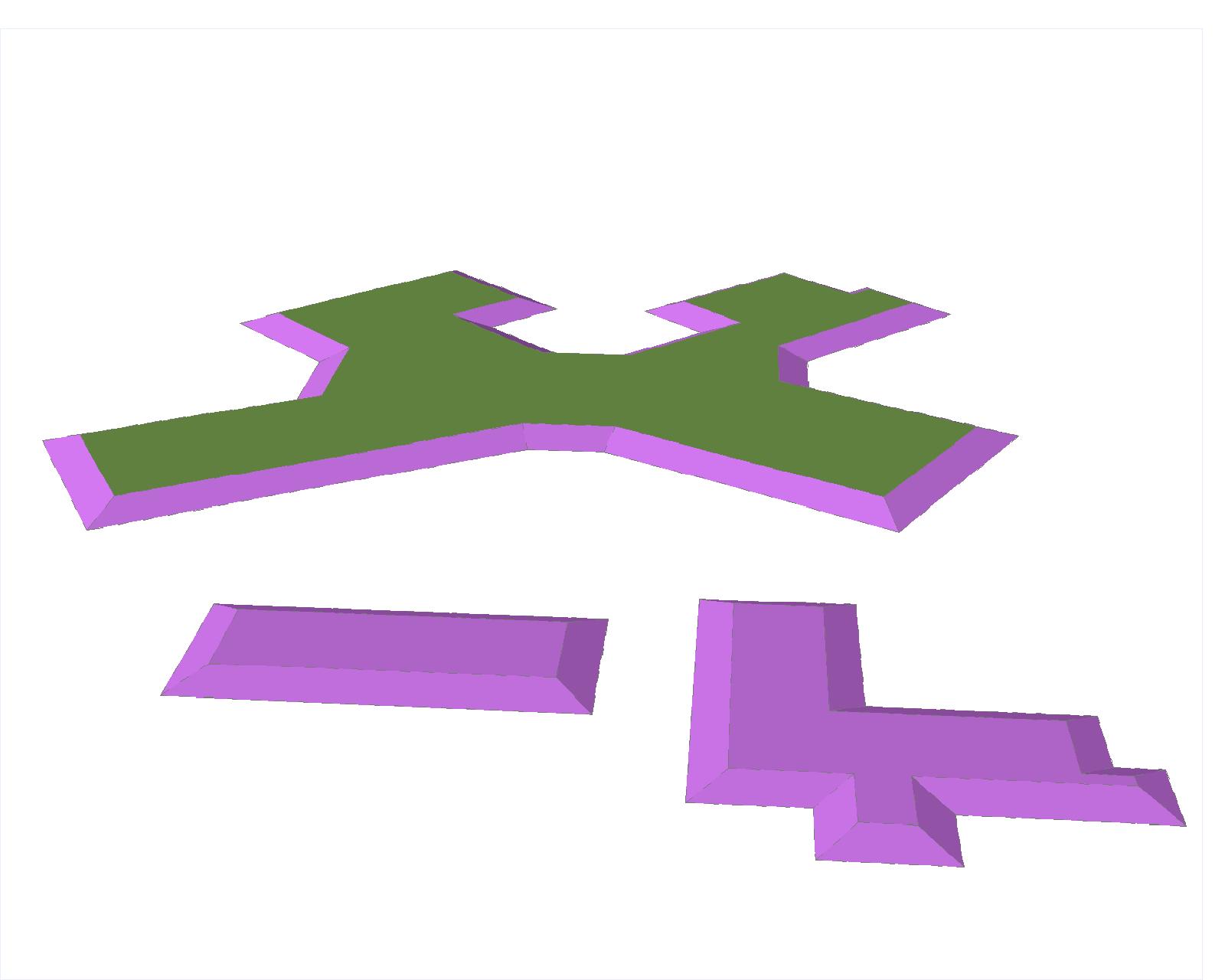 All the tutorials just show click'n'drag to move the top face. I figure there must be a simple setting I don't know about. Any help would be appreciated. Regards David
|
Replies:
Posted By: John Connor
Date Posted: 15.May.2017 at 11:57
|
Move Face is usually used to make minor adjustments. It requires the user to specify a distance and a direction. Is that what you are doing? Is your UCS oriented in the proper direction? I had no trouble moving the top face of an extruded rectangle to give it additional height. I think you are doing something wrong. Since you have already supplied the taper what is the point of moving the face? Could it be you are using the wrong command to accomplish whatever it is you have in mind? What do you want as a final result? FYI. I tried using the Move Face command both with a simple extruded rectangle and a solid similar your roof. In both cases the command worked. Can you provide a copy of your drawing that I can test the command on? ------------- "Humans have a strength that cannot be measured. This is John Connor. If you are reading this, you are the resistance." <<AutoCAD 2015>> |
Posted By: John Connor
Date Posted: 15.May.2017 at 16:36
|
For your viewing pleasure I offer the following. The 3D model with the green colored face is the original prior to using the Move Face command. The model with the yellow colored face is the 3D model after using the Move Face command to increase the overall height which would obviously change the angle. You weren't trying to copy the face were you? 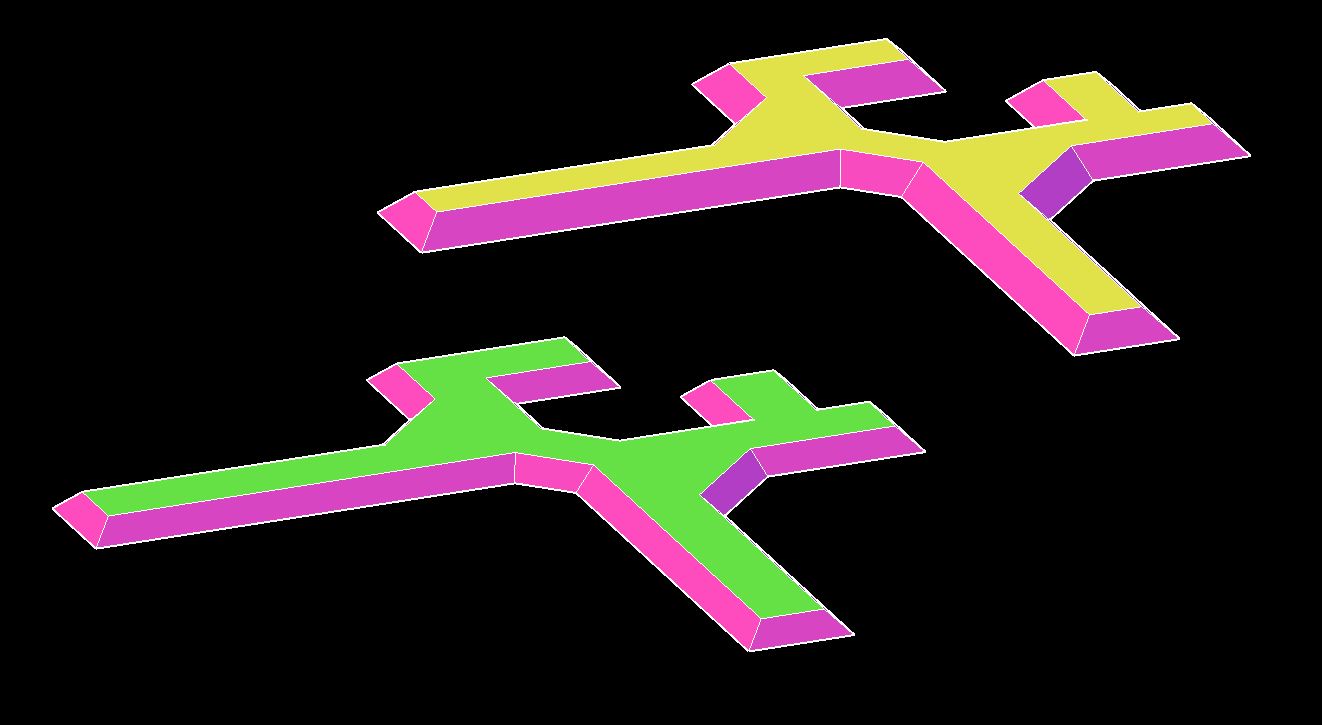 ------------- "Humans have a strength that cannot be measured. This is John Connor. If you are reading this, you are the resistance." <<AutoCAD 2015>> |
Posted By: DTH Drafting
Date Posted: 16.May.2017 at 01:38
|
Thanks John The result I'm after is to show the Roof Planes finishing with the Ridge, Valley and Hips. In the tutorials, after reaching the results above, by raising the top Face, the side faces continue at their taper angle until they meet each other - The top face disappears. Below is a link to a typical tutorial https://www.youtube.com/watch?v=81BlAB0SlA0" rel="nofollow - Below is a quick Top view sketch of the Roof (The area in green is going to be another level above the general roof) 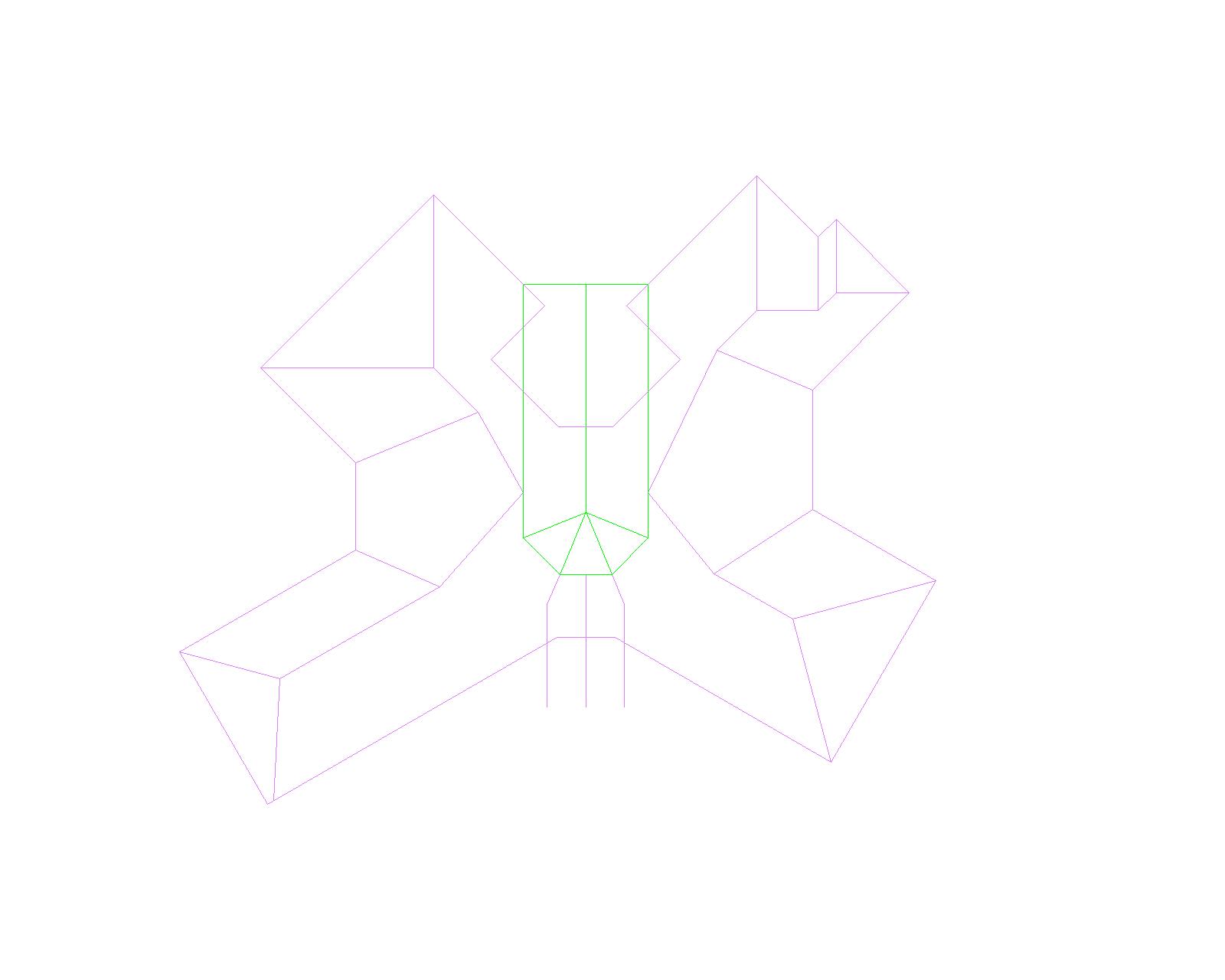 I realize that this particular roof shaped solid may have been to much for this method, however, I can't even get a simple rectangle say 6000mm X 4000mm to form as per the tutorials. Regards David
|