CATIA Drawing export to DXF/DWG
Printed From: CAD Forum
Category: EN
Forum Name: AutoCAD
Forum Description: Discussion about AutoCAD and AutoCAD LT, viewers, DWG and DXF formats, Design Review, AutoCAD web, Drive, add-ons
URL: https://www.cadforum.cz/forum_en/forum_posts.asp?TID=13649
Printed Date: 30.Oct.2026 at 06:02
Topic: CATIA Drawing export to DXF/DWG
Posted By: jsq
Subject: CATIA Drawing export to DXF/DWG
Date Posted: 16.Oct.2021 at 20:14
|
Hi Everyone I'm engineer worki in CATIA. A part of my projects are cuted on CNC machines (wood or metal). In that case I need to export some shapes to DXF format, and I need to open it in AutoCAD and convert to closed polyline for CNC machine program. The problem appears when there are some arcs, rounded corners ets. In DXF the end points of each arc are disconnected from the neighboring lines. The distance is very, very small, like 0,00000105mm! I lost a lot of time for manually connect these breaks to achieve shape ready to convert to closed polyline (I using _pedit command). Can anyone knows how to improve this work? I have checked options in CATIA. Each time with the same result. Maybe there's some option in AutoCAD for ignoring such small distances?
|
Replies:
Posted By: philippe JOSEPH
Date Posted: 17.Oct.2021 at 08:16
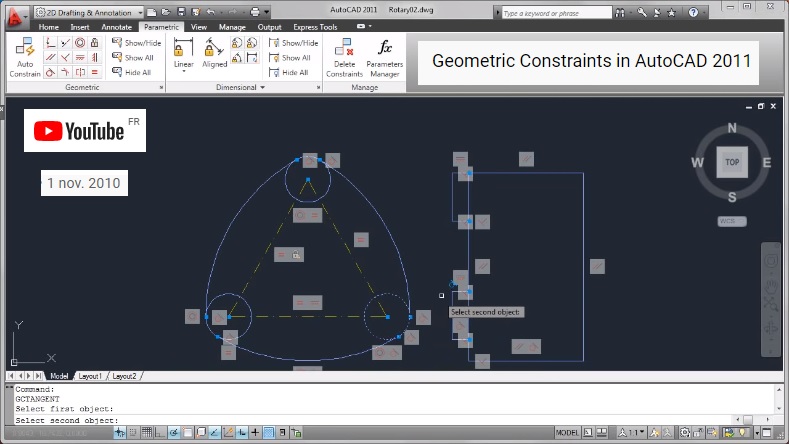
Hello jsq, you can "close" shapes with Geometric Constraints :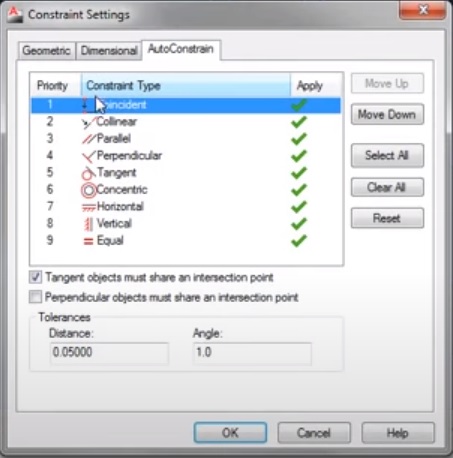 Also see this video on the internet : Geometric Constraints in AutoCAD 2011 See about : Tolerances set to zero ( 0 ) in distances, Autoconstrain that will do the job on selected items. It can even "sraiten" some geometry with the Angle tolerance set to zero ( 0 ), be carefull with these 2 settings working at the same time. |
Posted By: philippe JOSEPH
Date Posted: 17.Oct.2021 at 08:21
|
Posted By: philippe JOSEPH
Date Posted: 17.Oct.2021 at 08:25
| Jsq, you can verify if shapes are closed by launching some commands that require those shapes to be closed and AutoCAD will show you were it isn't with some red circles I think : Hatches, Boundary, etc... |
Posted By: philippe JOSEPH
Date Posted: 17.Oct.2021 at 08:32
|
Jsq when tou read 0,00000105 mm it's with the maximum precision available on AutoCAD that is 8 digits after the comma, some more can be after this and you can eventually see it by scaling x times your items and read some distances. For example if you scale an item 1000 times you will see 3 digits more of precision.
|