How to Create Text with Color Background?
Printed From: CAD Forum
Category: EN
Forum Name: AutoCAD
Forum Description: Discussion about AutoCAD and AutoCAD LT, viewers, DWG and DXF formats, Design Review, AutoCAD web, Drive, add-ons
URL: https://www.cadforum.cz/forum_en/forum_posts.asp?TID=13919
Printed Date: 05.Sep.2026 at 21:44
Topic: How to Create Text with Color Background?
Posted By: dery
Subject: How to Create Text with Color Background?
Date Posted: 30.Nov.2023 at 05:48
Can someone tell me please how to create a white text with color background like pic below in AutoCAD 2014? |
Replies:
Posted By: Vladimir Michl
Date Posted: 02.Dec.2023 at 13:18
|
Just make your text color "white" or "light gray" and put some color geometry "under" it, either literally "under" (using Z-coordinate) or with DrawOrder - e.g. a solid hatched rectangle, 2D shape, wipeout mask or similar. ------------- Vladimir Michl (moderator) https://www.linkedin.com/in/vmichl/" rel="nofollow - LinkedIn , Autodesk Expert Elite |
Posted By: dery
Date Posted: 02.Dec.2023 at 15:51
|
How do you change the color of the text to white? This is what I've done: 1. Make a rectangle 2. Make the text inside the rectangle. 3. Apply hatch (solid) inside the rectangle. And this is the result: 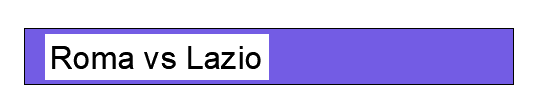 How to make the white background like above pic to same color as the purple background?
|
Posted By: Vladimir Michl
Date Posted: 03.Dec.2023 at 09:31
Done using the same workflow you described (point order: 1,3,2):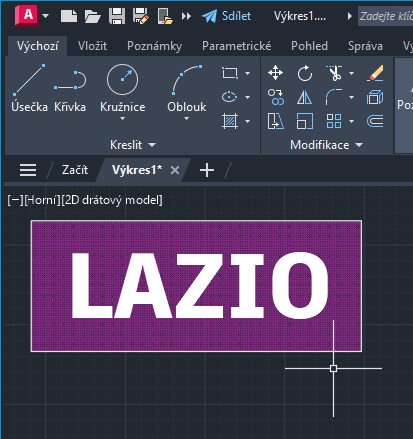 Do not apply any "masks" to the Text/Mtext if you create the rectangular geometry by yourself. Or use the Mask option for the text and set the mask color to purple (e.g. in the Properties, Ctrl+1) but don't create the rectangle/hatch manually.
------------- Vladimir Michl (moderator) https://www.linkedin.com/in/vmichl/" rel="nofollow - LinkedIn , Autodesk Expert Elite |
Posted By: dery
Date Posted: 03.Dec.2023 at 13:17
|
OK, now it works. The order is: 1. Create a rectangle with the desired size/dimension. 2. Apply hatch (solid) inside the rectangle. 3. Change the color of the hatch to the desired color. 4. Create text inside the hatched rectangle. 5. Change the color of the text to white. 6. Done.  Thanks for the help. |