ALIGNED DIMENSIONING
Printed From: CAD Forum
Category: EN
Forum Name: AutoCAD
Forum Description: Discussion about AutoCAD and AutoCAD LT, viewers, DWG and DXF formats, Design Review, AutoCAD web, Drive, add-ons
URL: https://www.cadforum.cz/forum_en/forum_posts.asp?TID=7840
Printed Date: 28.Oct.2026 at 03:47
Topic: ALIGNED DIMENSIONING
Posted By: meyed01
Subject: ALIGNED DIMENSIONING
Date Posted: 22.May.2012 at 09:08
|
Hi, Anyone know how to shrink the ext lines of a aligned dimension? The ext lines are attached to the initial drawing and are not able to be shortened? Any ideas... Cheers
|
Replies:
Posted By: heinsite
Date Posted: 22.May.2012 at 11:01
It's unclear what you mean by "shrink".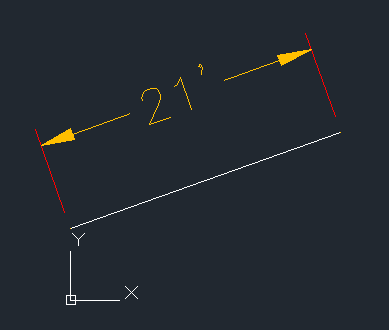 In the image above, the red lines are the extension lines, orange the dimension line, and the white line the object being measured. What is it you want to "shrink"? Dave. ------------- Dave Hein, P.E. Hawaii District Engineer Kona International Airport AutoCAD Certified Professional Autodesk Expert Elite |
Posted By: John Connor
Date Posted: 22.May.2012 at 12:07
|
Can't you change the dimension variable that governs those lines via the Properties palette?
------------- "Humans have a strength that cannot be measured. This is John Connor. If you are reading this, you are the resistance." <<AutoCAD 2015>> |
Posted By: meyed01
Date Posted: 22.May.2012 at 14:38
|
The red lines (extension lines) are the lines i want to make shorter. currently they are attached to the line which i am dimensioning. how do i shorten and detach these extension lines from the line i am dimensioning? when i try to the whole dimension rotates cheers,
|
Posted By: philippe JOSEPH
Date Posted: 22.May.2012 at 15:51
|
Hello, if aplicable to your AutoCAD 2011, you should find your answer in the properties palette ( CTRL + 1 ).
A panel should open an when you select your dimension, you have acces to the differents setings of your dimension in this palette.
I sequence you have :
General, miscellaneous, LINES AND ARROWS --> look at the ~ 19 th line and you will find :
Offset of the extension line : xxxx ( different from zero but depending on a good seting of your dimension style )
In any case it would be very important for you to have a good dimension style ( based on a good xxxxx.dwt file or a good "prototype dwg" ).
If you clip on ypour dimension and try to offset the base by moving the grips you will effectively rotate your dimension.
Don't touch the grips from the extremities of your line to be dimensioned.
See also the two different commands :
DIMALIGNED ( OK in any case with an angled line ) and DIMLINEAR ( OK with an angled line + a good seting of the UCS ).
Please let us know if and how you have solved yours problems.
|
Posted By: meyed01
Date Posted: 22.May.2012 at 16:03
|
Hi, yes! problem solved, thankyou for the advice, cheers, ed
|
Posted By: John Connor
Date Posted: 22.May.2012 at 18:13
|
Yep, that's the dimension variable I alluded to in the Properties palette. Glad to hear you found it.
------------- "Humans have a strength that cannot be measured. This is John Connor. If you are reading this, you are the resistance." <<AutoCAD 2015>> |
Posted By: heinsite
Date Posted: 22.May.2012 at 21:33
|
Let's anticipate the next question now, because it's unlikely there is only one instance where this adjustment needs to be made:
Q: How do you change *all* of the dimensions in the drawing in one go rather than doing them individually (a painful thought)?
A: Use QSELECT and "build" a selection where all of the dimensions are selected and change the offsets in Properties at once.
Dave. ------------- Dave Hein, P.E. Hawaii District Engineer Kona International Airport AutoCAD Certified Professional Autodesk Expert Elite |