Autocad classic in 2011
Printed From: CAD Forum
Category: EN
Forum Name: AutoCAD
Forum Description: Discussion about AutoCAD and AutoCAD LT, viewers, DWG and DXF formats, Design Review, AutoCAD web, Drive, add-ons
URL: https://www.cadforum.cz/forum_en/forum_posts.asp?TID=8666
Printed Date: 24.Oct.2026 at 20:00
Topic: Autocad classic in 2011
Posted By: Amien
Subject: Autocad classic in 2011
Date Posted: 29.Nov.2012 at 13:36
|
Hi
We have recently upgraded from AutoCAD 2010 to Autocad Architecture 2011. I just wanted to know if there is a way in 2011 to get the classic with the icons instead of that unoriginal copy cat, hideous ribbon??
------------- ArCtPot |
Replies:
Posted By: philippe JOSEPH
Date Posted: 29.Nov.2012 at 14:51
|
Hello Amien, see the image file ( if applicable to your AA 2011 ). 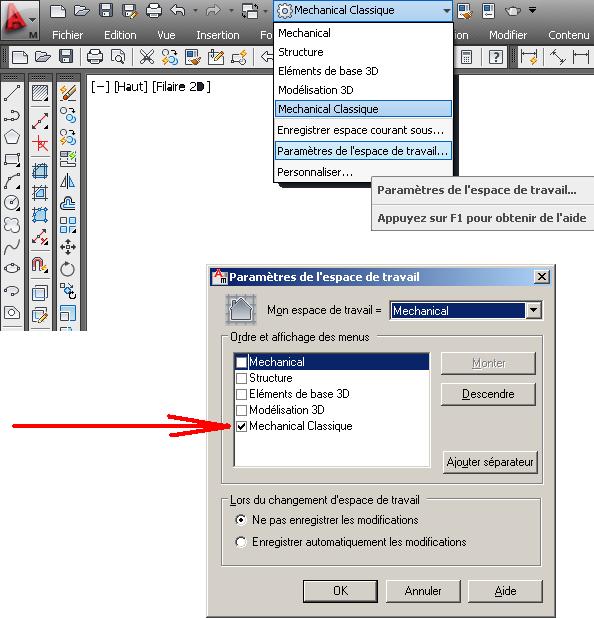 |
Posted By: Amien
Date Posted: 29.Nov.2012 at 15:57
|
Hi Phillippe
Thanks for the reply. However, I am not using the mechanical CAD and therefore cannot do those changes. ------------- ArCtPot |
Posted By: John Connor
Date Posted: 29.Nov.2012 at 17:59
|
What are the listed options for Workspaces?
------------- "Humans have a strength that cannot be measured. This is John Connor. If you are reading this, you are the resistance." <<AutoCAD 2015>> |
Posted By: Amien
Date Posted: 10.Dec.2012 at 11:05
|
apologies for the late reply... i only have "Architecture" available. ------------- ArCtPot |
Posted By: John Connor
Date Posted: 10.Dec.2012 at 11:51
|
AutoDesk eliminated the "classic" option for Architecture 2011. Welcome to a brave, new world.
------------- "Humans have a strength that cannot be measured. This is John Connor. If you are reading this, you are the resistance." <<AutoCAD 2015>> |
Posted By: heinsite
Date Posted: 11.Dec.2012 at 06:09
|
Most of us hated the ribbon too when it first came out in 2009. By about 2011 many were fully converted, myself included. But the truth is, ribbon, classic workspace, or something else, the fastest and most efficient users still type the majority of their instructions with the keyboard. I heard that statistic at AU this year. Dave. ------------- Dave Hein, P.E. Hawaii District Engineer Kona International Airport AutoCAD Certified Professional Autodesk Expert Elite |
Posted By: Amien
Date Posted: 11.Dec.2012 at 14:12
|
I fully agree with you, the keyboard is by far the fastest. I have editted the .PGP file to make some of the commands shorter and thus faster. But, certain commands still need icons. With classic the commands were one click. With the idiotic ribbons it lands up being several clicks.
Also with the classic one could customise the icons and create ones own icon strip. With the ribbon, as far as I know, you cannot do that.
Autodesk lands up dictating [fascism]their ways on us.
At least prior to 2011 the allowed the user the choice [democracy]
------------- ArCtPot |
Posted By: John Connor
Date Posted: 11.Dec.2012 at 18:09
|
Users can create new panels and populate them with the commands they like. It is all right there in the Customization Guide. It's not that difficult.
------------- "Humans have a strength that cannot be measured. This is John Connor. If you are reading this, you are the resistance." <<AutoCAD 2015>> |
Posted By: heinsite
Date Posted: 11.Dec.2012 at 19:02
|
And there's the Quick Access Toolbar (QAT) for the really oft-used commands! That can become a real favorite in a hurry.
Dave. ------------- Dave Hein, P.E. Hawaii District Engineer Kona International Airport AutoCAD Certified Professional Autodesk Expert Elite |
Posted By: Amien
Date Posted: 11.Dec.2012 at 21:22
|
Thanks guys for the feedback, most appreciated.
Have not played / messed around with autocad since ADT 2008 [excellent program], therefore am very much out of touch with whats new and therefore i am having much difficulty adadpting to this new non classic mode.
How would one go about accessing or creating this QAT? ------------- ArCtPot |
Posted By: heinsite
Date Posted: 11.Dec.2012 at 23:28
|
The QAT is in the top left part of the screen right next to the main application icon. You can add any often used command you want there simply by right clicking on its icon on the ribbon and then selecting "add to quick access toolbar". Once you have things up there you like you can use the CUI to rearrange the order to suit. A few commands I simply have to have available at all times include the Layers window, Save As, Switch Windows, Send to Back, Measuregeom. Your milage will vary.
Dave ------------- Dave Hein, P.E. Hawaii District Engineer Kona International Airport AutoCAD Certified Professional Autodesk Expert Elite |