Trying to auto-rotate symbols with Symbol Builder
Printed From: CAD Forum
Category: EN
Forum Name: AutoCAD
Forum Description: Discussion about AutoCAD and AutoCAD LT, viewers, DWG and DXF formats, Design Review, AutoCAD web, Drive, add-ons
URL: https://www.cadforum.cz/forum_en/forum_posts.asp?TID=9188
Printed Date: 22.Sep.2026 at 16:08
Topic: Trying to auto-rotate symbols with Symbol Builder
Posted By: ZeeKay
Subject: Trying to auto-rotate symbols with Symbol Builder
Date Posted: 01.May.2013 at 16:33
|
I am using Symbol Builder to populate my symbol library with existing company CAD blocks. I like how autoCAD Electrical library's original symbols have properties that allows the symbols to rotate according to whether you drop it on a horizontal or vertical wire. I was experimenting with the 'Radial / None' option for wire connections, which didn't work the way I hoped. Then I tried the 'Rotation' option in the 'Block Authoring Palettes - All Palettes' pop up box. I was concerned that it only let the rotation go in the counter-clockwise direction, but went ahead, saved it, and inserted it into the library to test. With no luck, it did not rotate on it's own. I am attaching a screen shot of me using the 'Rotation' function. 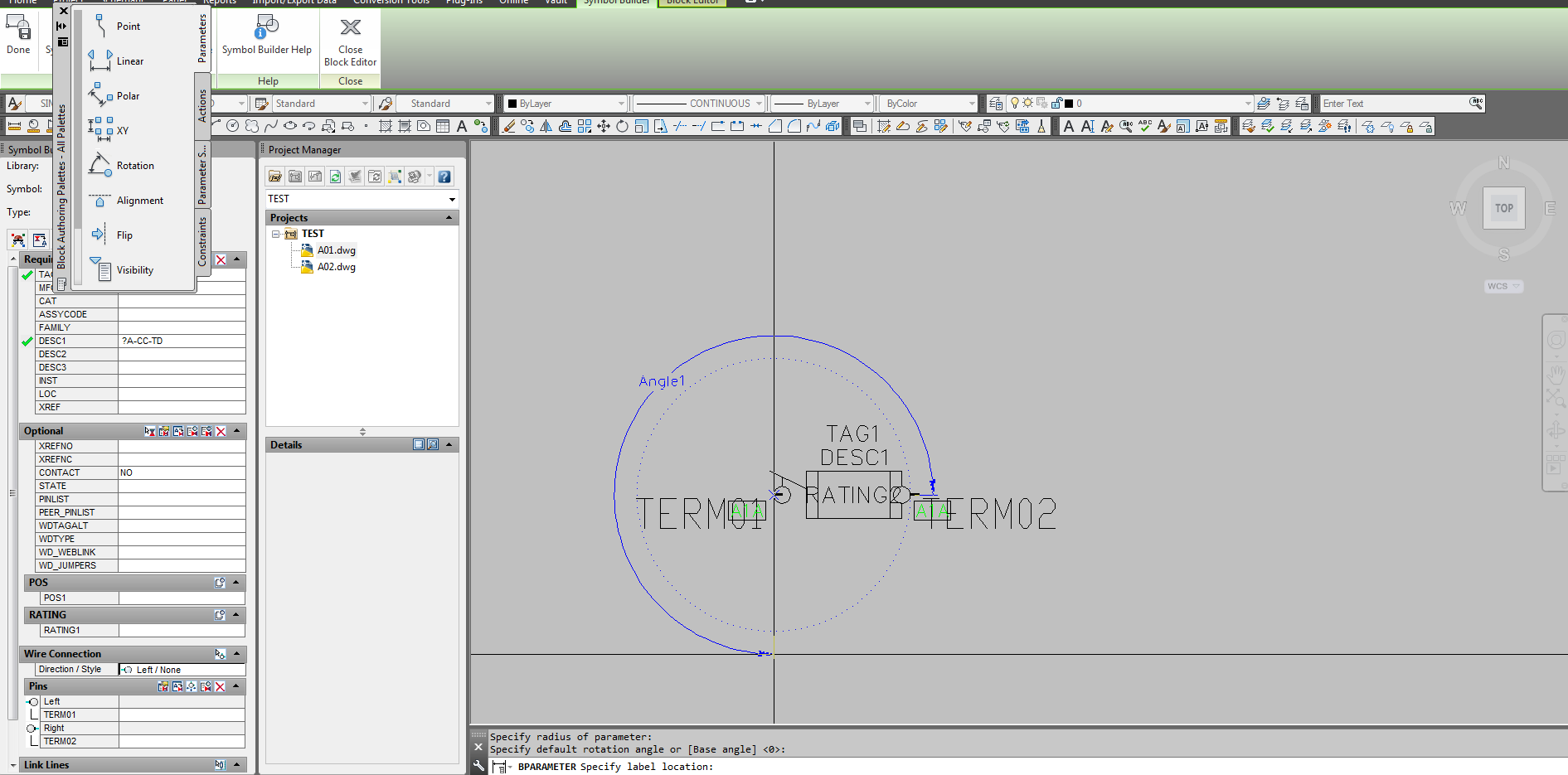 Is there something I am missing with either of those two functions to "auto-rotate" the symbol, or is it a different function altogether? I apologize if I did not submit this question to the right section, I am new at forums.
 |
Replies:
Posted By: heinsite
Date Posted: 02.May.2013 at 12:37
|
Yeah, you might be missing the Alignment parameter. This is the one you'd use to build a dynamic block that will automatically assume a rotation when placed (not just horizontal or vertical, but any angle). When a block with this feature is placed against an existing line it will snap to that angle. It's a bit tricky to work with until you get the hang of it. Play around with that one. Dave ------------- Dave Hein, P.E. Hawaii District Engineer Kona International Airport AutoCAD Certified Professional Autodesk Expert Elite |
Posted By: ZeeKay
Date Posted: 10.May.2013 at 17:49
|
I wasn't able to get it to work using the alignment and rotate functions. However, I solved my problem by finding the files for the icons that AutoCAD E uses for its library, opening each of them, and replacing their symbols with my company's symbols, and then moving around the attributes to fit the new icon. First I insert the symbol that I want to use, say a fuse, I insert it once horizontally, and once vertically. I double click the first one and see the name of the block. I search for that block in the library path (jic125) HFU1 (H=horizontal, FU=device name, 1=parent). I open the file, change it how I want it to appear, making sure that the centre of the symbol stays at (0,0) for the insertion point. I save it, go back to the drawing page, delete the icon I just worked on, purge, and then reinsert it to make sure it was formatted correctly. Then I go back to the jic125 and open VFU1 for the vertical one, and do the same thing. Then when I go to insert the symbol, it appears as my company's symbols, while still self-orienting itself to the horizontal or vertical wire I placed it on.
|