Multi Leaders
Printed From: CAD Forum
Category: EN
Forum Name: CAD - general
Forum Description: General discussion about CAD, formats, standards, management, licensing, networking, harware, other CAD applications
URL: https://www.cadforum.cz/forum_en/forum_posts.asp?TID=9934
Printed Date: 28.Sep.2026 at 21:08
Topic: Multi Leaders
Posted By: kc13
Subject: Multi Leaders
Date Posted: 05.Jan.2014 at 20:33
|
Hi all. i am trying to use multi leaders in my drawing. I have set and modified the settings needed to do this, but when the multi leader is picked the text formatting box appears with the height at 250 when i only need to add text at height 2.5. I have not set the text at this height of 250 anywhere. Please help.
Many thanks to all
kc ------------- kc |
Replies:
Posted By: John Connor
Date Posted: 05.Jan.2014 at 22:37
|
Try this. Run the DTEXT command and specify the height of 2.5; type some text. Stop Now try using a multileader. What happens? ------------- "Humans have a strength that cannot be measured. This is John Connor. If you are reading this, you are the resistance." <<AutoCAD 2015>> |
Posted By: kc13
Date Posted: 05.Jan.2014 at 22:52
|
Tried that Jhon, still same problem the text formatting box appears with the height at 250, when i need it at 2.5, the settings are correct.
Regards the other about Scale bar, that is now ok the VP lock had been docked in the Layout Tab, i unlocked and all is fine regarding that.
Thanks once again ------------- kc |
Posted By: heinsite
Date Posted: 11.Jan.2014 at 05:27
|
In the multileader styles dialog make sure the text height selected is 2.5 or whatever you want. Make sure also you select the text style you want to use. In the text styles dialog check that annotative style for the same text type you selected in the multileaders styles setup. Make sure there that the text height is set to 0. Then try things out and let us know if this helps. Dave. ------------- Dave Hein, P.E. Hawaii District Engineer Kona International Airport AutoCAD Certified Professional Autodesk Expert Elite |
Posted By: kc13
Date Posted: 11.Jan.2014 at 22:38
|
Hi Dave, Multileader is working fine thanks, only thing is i do not know how to change the direction of the arrowhead, meaning where i click it enters the text at that point when i want it to appear at the end of the arrowhaed at landing, hope it makes sense.
Many thanks
kc ------------- kc |
Posted By: heinsite
Date Posted: 12.Jan.2014 at 05:45
|
It's a bit confusing understanding what you're seeing there... but compare your multileader styles settings to those shown on the attached to see if you can correct the trouble. Dave. uploads/35918/mleader-panels.zip" rel="nofollow - uploads/35918/mleader-panels.zip ------------- Dave Hein, P.E. Hawaii District Engineer Kona International Airport AutoCAD Certified Professional Autodesk Expert Elite |
Posted By: gegenytibor
Date Posted: 10.Feb.2014 at 10:47
|
Hello, How can I create this tipe of multileader? Sometimes I need to use only text line 1, but sometimes I need text line 2 and 3 as well. I know I have to create a block and insert multileader block options in multileader type: block. But it is not working the best mode for me if I move it from right to left... I have to create a dynamic block with flip option? How can I add text lines? Pleas Help me if you can! 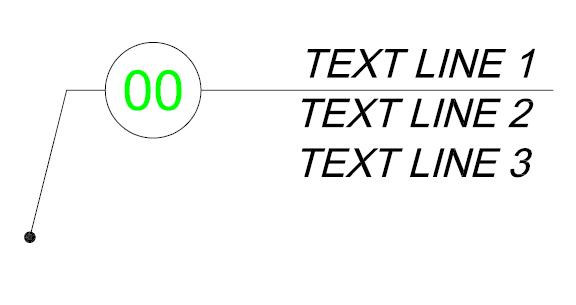 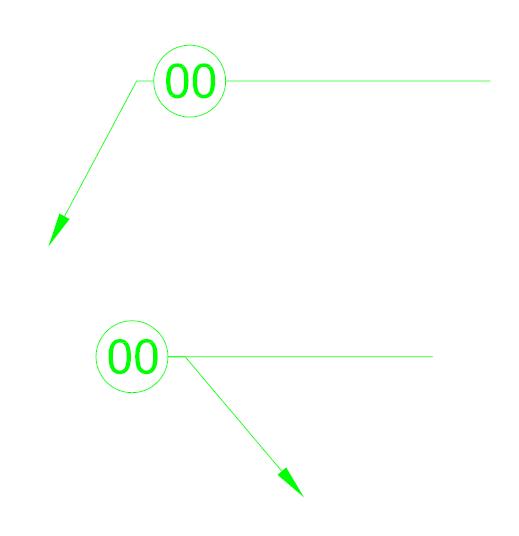
|
Posted By: heinsite
Date Posted: 10.Feb.2014 at 19:19
|
You will need a dynamic block to do this. You'll have attributes for the three text lines and for the number in the bubble. It will also have to have flip, move and stretch parameters to make it fully functional, ie, to allow you to reposition it as needed. It's not a trivial build, but a little tricky is all. Dave. ------------- Dave Hein, P.E. Hawaii District Engineer Kona International Airport AutoCAD Certified Professional Autodesk Expert Elite |
Posted By: heinsite
Date Posted: 10.Feb.2014 at 19:46
|
Try out the attached. The only "gotcha" in it is that it won't like being dragged by the tip of the arrowhead - so move it by the "shoulder' point instead. Other than that it's pretty much what you were looking for. It's also set up to be annotative... if that matters to you, with text size set to 1/8". Feel free to modify any or all of this to your liking. Dave. uploads/35918/3-Line-MLeader-Bubble.dwg" rel="nofollow - uploads/35918/3-Line-MLeader-Bubble.dwg ------------- Dave Hein, P.E. Hawaii District Engineer Kona International Airport AutoCAD Certified Professional Autodesk Expert Elite |
Posted By: gegenytibor
Date Posted: 17.Feb.2014 at 10:44
|
Thank you Dave! It's perfect for me! THANK YOU! |