![CAD Forum - tips, tricks, discussion and utilities for AutoCAD, Inventor, Revit and other Autodesk products [www.cadforum.cz]](../common/arkance_186.png "CAD Forum - ARKANCE Community - tips, tricks, discussion and utilities for AutoCAD, Inventor, Revit and other Autodesk products [www.cadforum.cz]")
CAD FORUM - TIPS & TRICKS | UTILITIES | DISCUSSION | BLOCKS | SUPPORT | HELP & ASSISTANCE

 What is the ARKANCE Community?
Over 1.124.000 registered users (EN+CZ).
AutoCAD tips, Inventor tips, Revit tips, Civil tips, Fusion tips.
The new Beam calculator, Spirograph generator and Regression curves in the Converters section.
New AutoCAD 2027 commands and sys.variables

 CAD tip # 5788:
Question
A
There is Registry setting in Inventor which controls displaying of hidden edges (in the wireframe and shaded wireframe display modes) using dashed lines.
You can then use a similar 3D display of your Inventor parts and assemblies:
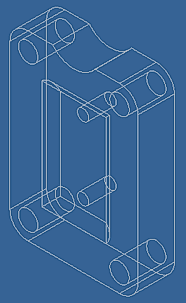
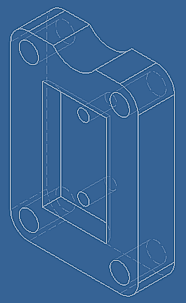
HKCU\Software\Autodesk\Inventor\RegistryVersionXX.0\System\Preferences\Displaythe Hidden Line Pattern value should be changed from the original ffff (in Inventor 11, resp. 3ff in Inventor 2008) to fff (line/space ratio 2:1) or ff (line/space ration 1:1). Then restart Inventor.
To show hidden edges you should have checked the "Hidden Lines" (Hidden Edges) options in the Application options > Display settings. In Inventor 2008 you should also uncheck the "Show hidden model edges as solid" option in this dialog tab.
Inventor2008Inventor11

 *CAD
*CAD
9.10.2007
13612×
this tip shared by ARKANCE experts applies to: Inventor 2008 · Inventor 11 ·


CADforum
Tips, tricks, utilities, help, how-tos and FAQ for AutoCAD, LT, Inventor, Revit, Map, Civil 3D, Fusion, Forma, 3ds Max and other Autodesk software (community support by ARKANCE). See About CADforum.
Copyright © 2026 | Advertise with us | Online privacy