![CAD Forum - tips, tricks, discussion and utilities for AutoCAD, Inventor, Revit and other Autodesk products [www.cadforum.cz]](../common/arkance_186.png "CAD Forum - ARKANCE Community - tips, tricks, discussion and utilities for AutoCAD, Inventor, Revit and other Autodesk products [www.cadforum.cz]")

 CAD tip # 10889:
Question
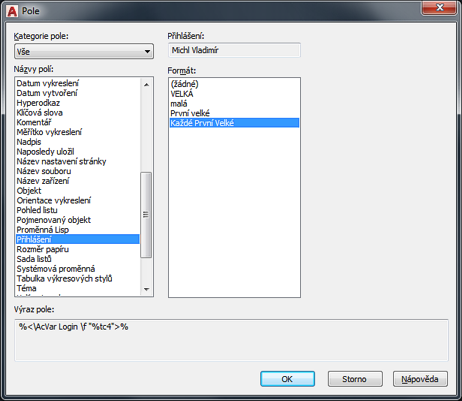
In AutoCAD, you can get the full "display name" using the dynamic text field with the variable "Login" - the field code:
%<\AcVar Login \f "%tc4">%
entered in a text or attribute value will display the full user name:
If you want to access full username in your own add-on application or script, maybe including more details from the domain record (LDAP, Directory Services), you can use - on computers logged into a company domain - the respective functions available in VBA or .NET tools; for LISP you can use the CAD Studio's utility (getuserinfo). This utility returns the list with detailed information (name, e-mail, city, mobile phone number, company, department, job title) about the current domain user - e.g.:
("John Doe" "john.doe@acme.com" "New York" "+001 800 123 456" "ACME Inc." "Development" "CAD Manager")
Then e.g. calling "(nth 1 (getuserinfo))" will return the e-mail address. Contact CAD Studio for the source code of the getuserinfo utility.
To get the full domain name of the user (DisplayName) or his/her phone number e.g. in Inventor, use the following code of an iLogic rule:
'This must be in the rule header
AddReference "System.DirectoryServices.AccountManagement.dll"

Dim displayName = System.DirectoryServices.AccountManagement.UserPrincipal.Current.DisplayName
MsgBox(displayName)
Dim Phone = System.DirectoryServices.AccountManagement.UserPrincipal.Current.VoiceTelephoneNumber
MsgBox(Phone)
Obviously, the condition is that the user must be logged into the domain (and not just e.g. a local account on the home computer).

 *CAD
*CAD